Using Labels to Organize Your Meetings 🎨🏷️
Labels help you quickly categorize, filter, and organize your meetings in Jurnie. Whether you're working across multiple projects, clients, or departments, labels make it easy to stay structured and find what you need. You can create your own labels, choose colors, and apply them to any meeting.
Creating a New Label 🆕
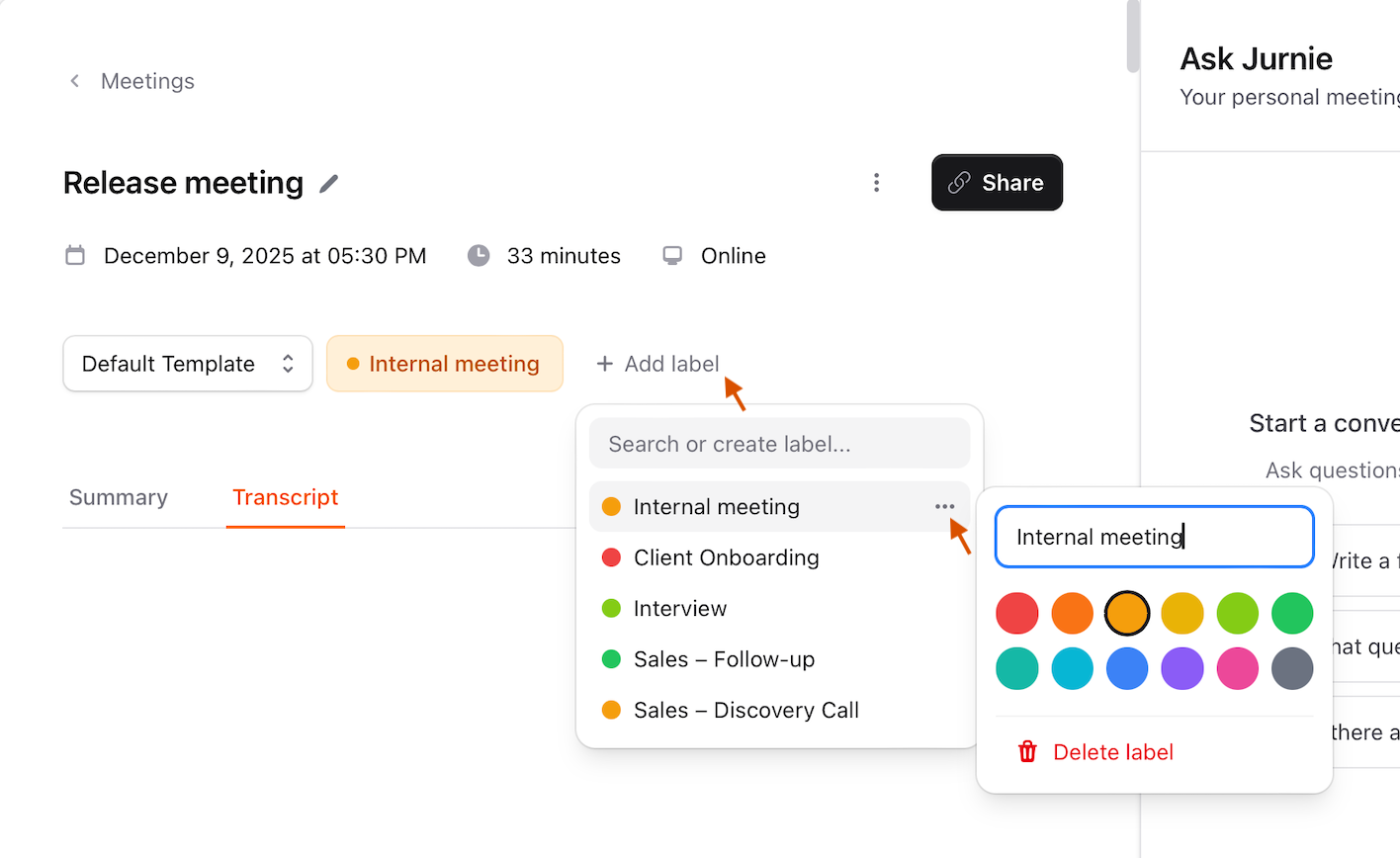
Inside your meeting, you can add a label, create a new one, and customize it with a different color:
Open your meeting from the Meetings list.
Go to the Labels section at the top of the meeting.
Click Add Label → Type your Label Name.
Choose a color for your label (optional).
Press Enter — your new label is ready to use!
💡 Tip: You can assign multiple labels to a single meeting to keep it organized by project, priority, or team.
Filtering Meetings by Labels 🔍
When you open the list of all your meetings, you can filter them based on labels to quickly find meetings by project, team, or priority.
💡 Tip: You can select multiple labels at once to narrow down your results even further.
Editing or Deleting a Label ✏️🗑️
Inside a meeting, press Add Label and you’ll see a list of all your labels. Click the three-dot menu next to a label, and you can edit the name, change its color, or delete the label.
💡 Tip: Use this to keep your labels organized and up to date.
Why Use Labels? 🤔
Labels help you:
Organize meetings by project, team, or topic
Quickly filter large lists of meetings
Highlight priority categories
Keep your workspace clean and structured
Was this helpful?
Still need help? Share an idea